Connect React JS to Firebase

Prathmesh Dhatrak's Blogs
What is Firebase?
Firebase is a BaaS (backend as assistance) platform developed by Google for making web and mobile applications. It provides developers with a number of tools and services to help create quality applications and scale over a long time as their user base increments.
A few outstanding features Firebase gives:
• Authentication/Validation — Firebase Authentication can be used to manually integrate one or more sign-in methods into an app. • Realtime database — data is synced across all clients in real-time and remains available even when an app goes offline. • Hosting - Firebase gives quick hosting to a web application. • Analytics — allows you to track and prioritize issues with your app, as well as monitor the success of your app • It offers Free and Paid options
Setting up your Firebase account
To start the Firebase account setting, you'll need to have a Google account. If you don't have one or need to make one for Firebase you can go to the Google Gmail Home page and make an account for free.
Once you’ve made an account, go to Firebase and click the ‘Get started’ button.
Continue to click ‘Create a project’.

Now enter your project name & click on the check box. Then click continue

Again just click on continue

If you want to analytics then, allow the analytics, and then click ‘create project’.

Now Select Your Google Analytics Account.

Firebase will then create the project and then click on continue to direct you to the project’s overview.

 Depending on the device your application is for, select the right icon (iOS, Android, Web). We'll associate our Firebase undertaking to a web application in this blog so go ahead and select the web icon.
You'll be prompted to register your application.
Depending on the device your application is for, select the right icon (iOS, Android, Web). We'll associate our Firebase undertaking to a web application in this blog so go ahead and select the web icon.
You'll be prompted to register your application.
Once registered, Firebase will create your Firebase SDK script that you will use to connect your react-app to the project.

Click 'continue to console' and you will be directed back to the overview page.
• To get to this code whenever simply click on the settings dial and select 'project settings'
Select your database From your Firebase console, select the 'Build' column on the right-side panel and various sub-headings will show underneath it - you'll want to take a look at Firestore Database and the Realtime Database.

The difference between the two described by Firebase is: • Cloud Firestore is Firebase's newest database for mobile application improvement. It expands on the achievements of the Realtime Database with a new, more intuitive data model. Cloud Firestore additionally includes more features, faster queries, and scales farther than the Realtime Database. • Realtime Database is Firebase's original database. It's an effective, low-latency solution for mobile applications that require synced states across clients in real-time.
For this blog, we’ll choose Firestore as our database.

Go ahead and click ‘Create database’. You’ll then be prompted to start in Production or Test mode.

Then, at that point, choose an area where your information will be stored. Select the best area for your requirements and click 'Enable'.
Once done, you’ll be redirected to your Firestore database.

Fantastic. We now have a project registered with Firebase and a Firestore database associated with the project. You can manually add information to your database through this control center and follows a Collection to Document model.
Now let's connect it to our react-app.
Linking Firebase project to our react-app with Firebase SDK
If you haven’t created a react-app yet, go ahead and enter this line in your terminal in the folder where you’d like to store your app.
npx create-react-app My First Project
Once create-react-app has done its thing, make a new folder titled ‘utils’ within your components folder. Within the ‘utils’ folder create a file called ‘firebase.js’.

Within the file add your imports at the top and create a firebaseConfig variable using the SDK code from your Firebase project settings. Once the firebaseConfig variable has been made, initialize it via firebase.initializeApp() method. After that create a database variable to reference your project’s firestore database.
import firebase from 'firebase/compat/app'; import "firebase/firestore"
const firebaseConfig = { apiKey: "AIzaSyBkzpkAYhekD5zDA-jOBpRA0ypq9CWHYZE", authDomain: "level-storm-330005.firebaseapp.com", projectId: "level-storm-330005", storageBucket: "level-storm-330005.appspot.com", messagingSenderId: "669292141198", appId: "1:669292141198:web:50599f5b45b83950d747df" };
firebase.initializeApp(firebaseConfig);
export const db = firebase.firestore();
export default firebase;
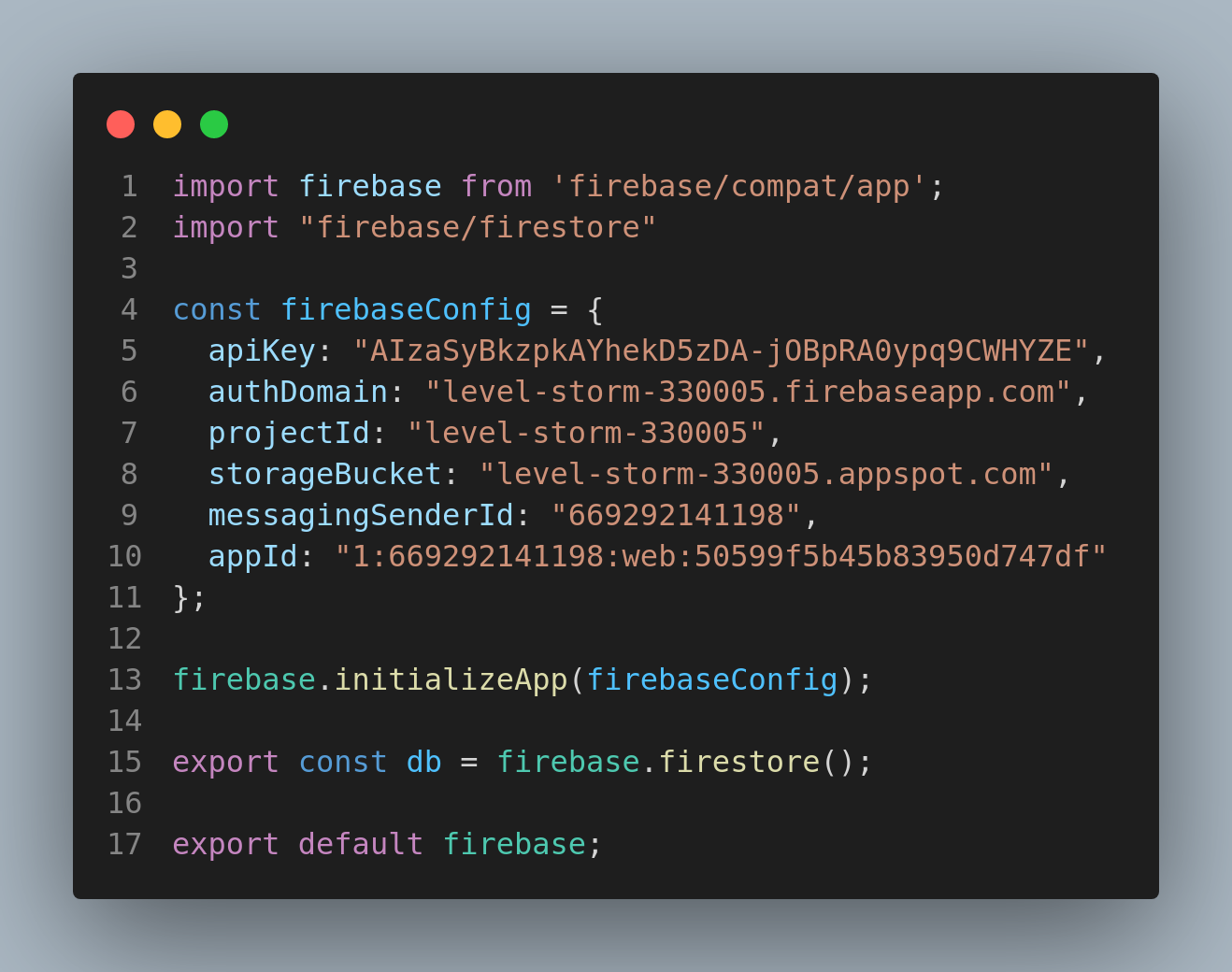
Once that has been set up. The last step is to import it into your index.js file.
import React from "react"; import ReactDOM from "react-dom"; import Routes from "./routes"; import firebase from "./utils/firebase";
ReactDOM.render( , document.getElementById("root") );

Although the line is subdued it's okay because you’ve initialized the app and is now connected to your index.js file.
That it! You’ve officially created a Firebase project with an accompanying Firestore database and linked it to your react-app!


